
Installation
The SDK is currently in a Closed Beta and is made available to app developers once they register with the service. The best way to register is to drop an email to [email protected]. Once registered, you will be provided with a user name and password which are required for getting the SDK.
Prerequisites
Make sure the following requirements are met before proceeding with the SDK integration.
- Context360 API Key for your App.
- Maven credentials for Android SDK
- GCM SenderId configured for the app
Quick Integration
Adding Context360 SDK to your App is just about adding the SDK as a Gradle dependency and initializing the SDK during App startup. Let's see the basic steps.
Gradle Settings
Open gradle.properties and add the following properties:
c360maven_user=<maven username at registration>
c360maven_password=<maven password at registration>
c360maven_url=http://dl.context360.com/artifactory/libs-release-local
Open the root or projects' gradle.build file and add the following maven repository under allprojects.respositories section as shown below:
allprojects {
	repositories {
		jcenter() // Add after this
		maven {
			url "${c360maven_url}"
			credentials {
				username = "${c360maven_user}"
				password = "${c360maven_password}"
			}
		}
	}
}
Open the app or modules gradle.build file add the SDK dependency to the dependencies section.
dependencies {
    compile 'com.google.android.gms:play-services-location:10.2.0'
    compile 'com.google.android.gms:play-services-places:10.2.0'
    compile 'com.google.android.gms:play-services-gcm:10.2.0'
    ...
    compile 'co.inset.sdk:sciosdk:2.5.6-1'
}
Sync the project by clicking the Sync Now prompt above the Editor.

You can also click the Sync Project icon in the toolbar as shown.
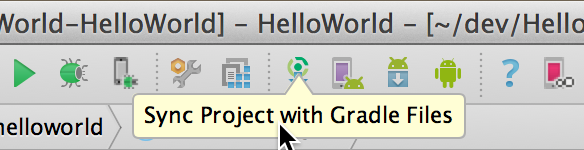
Project setup is now complete. You can proceed to the next step!
Updated about 9 years ago